

Getting Started with Graph APIs using EA GraphLink
Overview
EA GraphLink allows you to access data from your Sparx Enterprise Architect (EA) models such as elements, connectors, packages, diagrams, and their properties.
Instead of opening EA, you can simply send a request from a tool like Postman and retrieve the data you need.
Using tools such as Postman, users can send API requests to EA GraphLink and retrieve model data in a structured format for analysis, integration, and reporting purposes.
To begin using the API, the following are required:
- Endpoint URL
The address to which API requests are sent
- API Token
A secure access key used to authenticate API requests
Both the Endpoint URL and API Token can be obtained from the EA GraphLink application. The next section describes how to retrieve these details.
Prerequisites
Ensure that the following prerequisites are met before proceeding:
- The EA GraphLink server is installed, running, and accessible through a web browser
- A valid user account is available
- If not, contact your EA GraphLink administrator to create one
- At least one schema and one EA model are configured and active
- The EA GraphLink server URL is known
Example: http://your-server:8090
Retrieving the Endpoint URL and API Token
Follow the steps below to obtain the Endpoint URL and API Token required for accessing the EA GraphLink API:
- Open the EA GraphLink application in a web browser and log in using your credentials
- From the left navigation panel, select Query Explorer
- At the top of the page:
- Select the required Graph Schema from the first dropdown
- Select the corresponding EA Model from the second dropdown
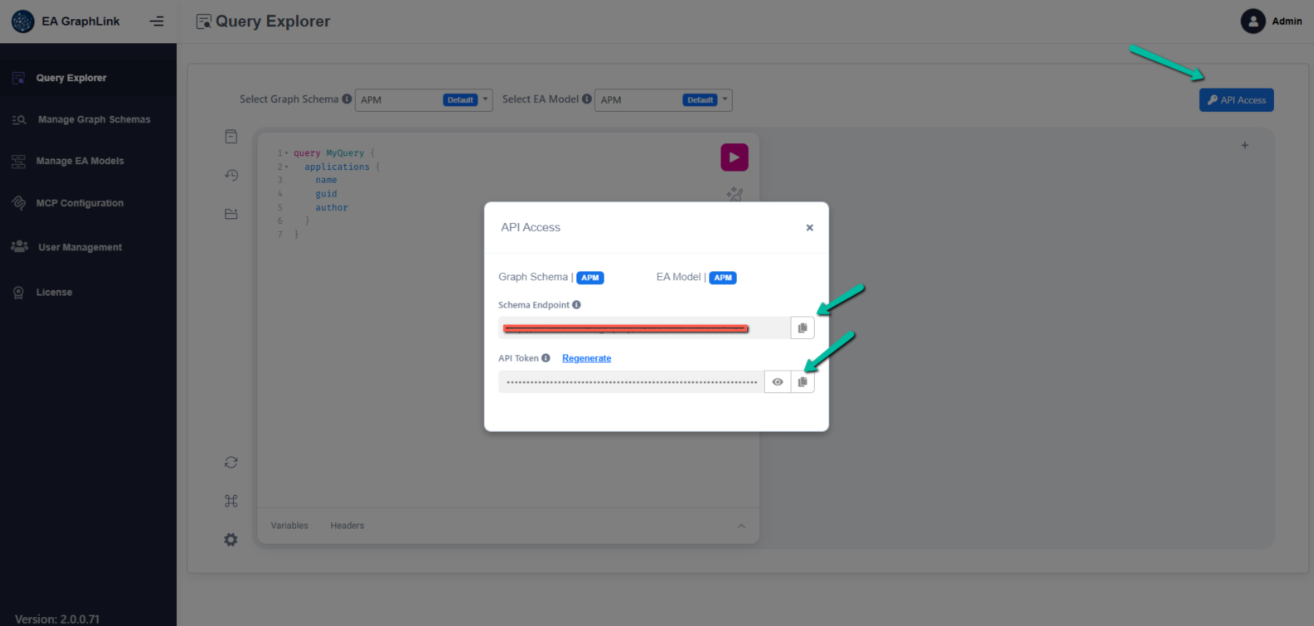
- Click the API Access button (key icon) located in the top-right section of the page
- A dialog will be displayed containing the following details:
- Schema Endpoint
This is the Endpoint URL. Use the copy option to copy the complete URL
- API Token
This is your secure access key. Click the visibility icon to reveal the token, then copy it
- Store both the Endpoint URL and API Token securely, as they will be required in subsequent steps
Important Note
If the Regenerate option is used, a new API Token will be generated and the previous token will be invalidated immediately.
Any existing integrations or tools using the previous token must be updated with the newly generated token.
Understanding Query Execution
API querying in EA GraphLink follows a request and response model.
- A query is defined to specify the data to be retrieved
- The query is sent to the Endpoint URL along with the API Token for authentication
- The server processes the request and returns the corresponding data in a structured response
Example Query
The following example demonstrates a simple query to retrieve top-level packages:
{
“query”: “{ packages(filters: { parentIds: 0 }) { name packageId } }”
}
This query requests the name and package ID of all top-level packages.
Example Response
A typical response from the API is shown below:
{
“data”: {
“packages”: [
{ “name”: “Architecture”, “packageId”: 1 },
{ “name”: “Infrastructure”, “packageId”: 2 },
{ “name”: “Applications”, “packageId”: 3 }
]
}
}
The response is returned in JSON format and contains the data requested in the query.
Executing API Requests Using Postman
Follow the steps below to configure Postman for sending requests to the EA GraphLink API.
Step 1: Create a New Request
- Open Postman
- Click New and select HTTP Request (or use the shortcut Ctrl + N)
Step 2: Set the Request Method and Endpoint
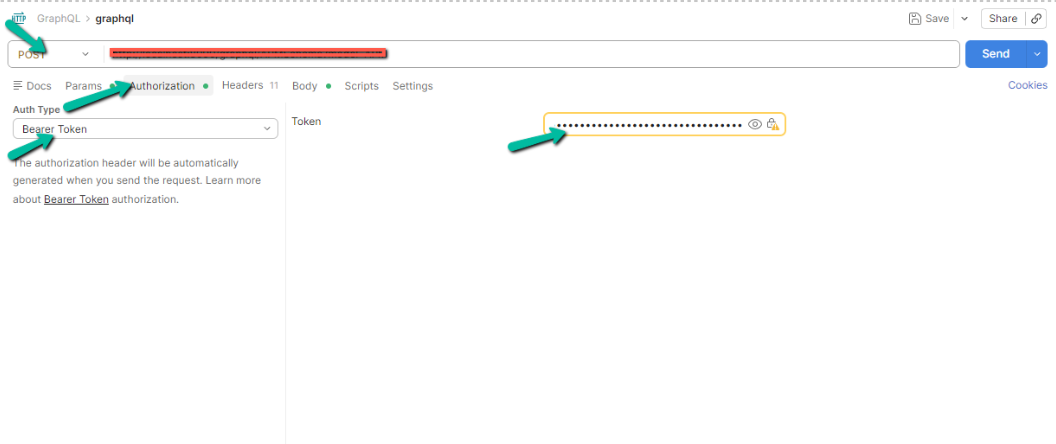
- In the method dropdown (top-left), change the request type from GET to POST
- In the URL field, enter the Endpoint URL obtained earlier
Example:
Step 3: Configure Authentication
- Navigate to the Authorization tab
- In the Auth Type dropdown, select Bearer Token
- In the Token field, enter your API Token
Step 4: Set Up the Body
- Navigate to the Body tab
- Select raw
- From the format dropdown, choose JSON
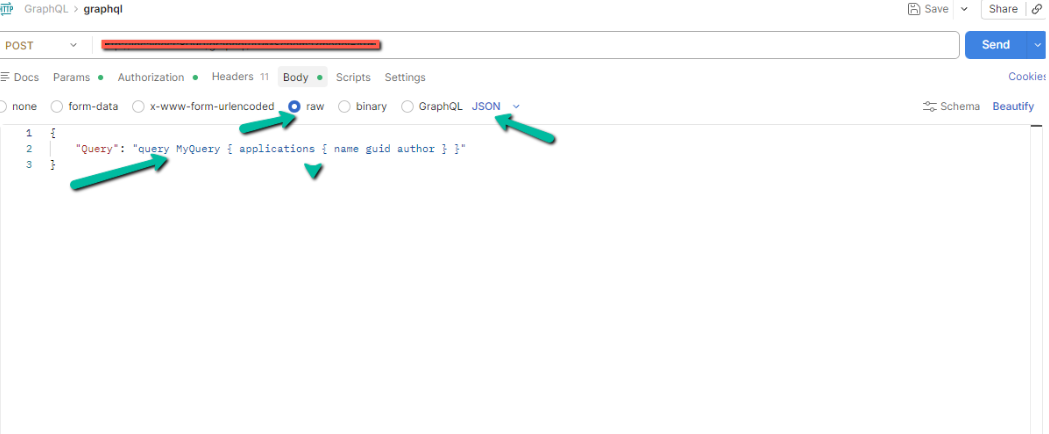
Postman is now configured and ready to send API requests.
Executing Your First Query
Follow the steps below to send a test query and verify that the API is functioning correctly.
Step 1: Enter the Query
In the Body section of Postman, enter the following query:
{
“query”: “query MyQuery { applications { name guid author } }”
}
This query retrieves the name, GUID, and author of application elements.
Step 2: Send the Request
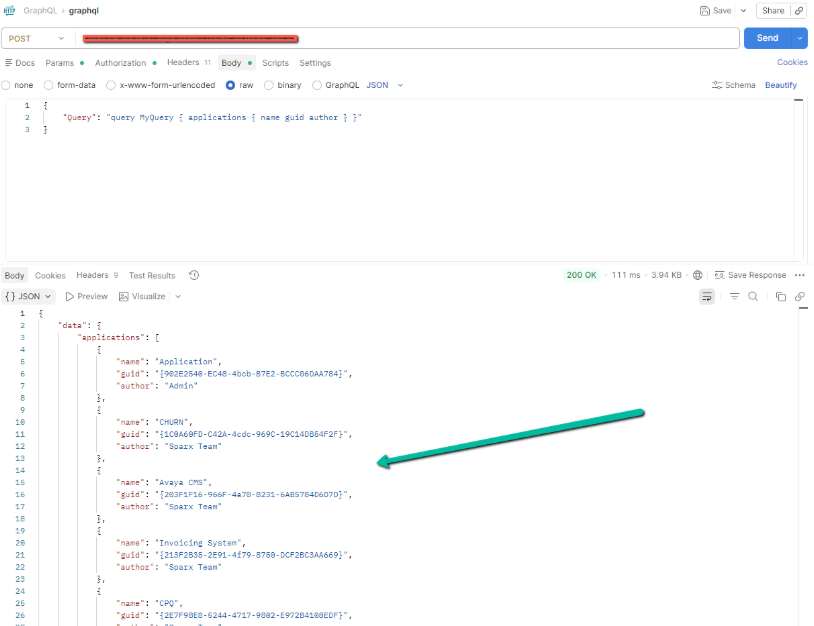
Click the Send button located on the right side of the request bar to execute the query.
Step 3: Review the Response
The response will be displayed in the lower panel of Postman. A successful response will resemble the following:
{
“data”: {
“applications”: [
{
“name”: “Application”,
“guid”: “{902E2540-EC48-4bcb-B7E2-BCCC06DAA784}”,
“author”: “Admin”
},
{
“name”: “CHURN”,
“guid”: “{1C0A60FD-C42A-4cdc-969C-19C14DB54F2F}”,
“author”: “Sparx Team”
}
]
}
}
Result Validation
If the response contains a data object with results, the API request has been successfully executed and the connection to EA GraphLink is working as expected.
Sample Queries
The following examples demonstrate commonly used queries. Replace the content in the Postman Body section with any of these queries and execute the request.
Retrieve Top-Level Packages
Returns the names and identifiers of all root-level packages in the EA model.
{
“query”: “{ packages(filters: { parentIds: 0 }) { name packageId } }”
}
Retrieve Child Packages for a Specific Package
Returns packages that are directly contained within a given parent package.
Replace 123 with the required Package ID.
{
“query”: “{ packages(filters: { parentIds: 123 }) { name packageId } }”
}
Retrieve Elements by Type
Returns elements filtered by stereotype. Replace “Application” with the required stereotype.
{
“query”: “{ elements(filters: { stereotype: \”Application\” }) { name alias status author } }”
}
Retrieve Elements with Tagged Values
Returns elements along with their associated tagged values (custom properties).
{
“query”: “{ elements(filters: { stereotype: \”Application\” }) { name taggedValues { property value } } }”
}
Retrieve Connectors Between Elements
Returns relationships between elements, including source and destination details.
{
“query”: “{ connectors { name connectorType direction sourceElement { name } destElement { name } } }”
}
Retrieve Diagrams
Returns a list of diagrams within the model.
{
“query”: “{ diagrams { name diagramType author createdDate } }”
}
Note
The fields available in queries depend on the selected schema. To explore available fields:
- Use the Query Explorer within EA GraphLink
- The Explorer panel provides a structured view of available entities and fields
- Queries can be constructed interactively by selecting the required fields
Understanding the API Response
All responses from EA GraphLink follow a consistent JSON structure. The response typically contains either the requested data, error details, or a combination of both.
Successful Response
When a request is processed successfully, the response contains a data object with the requested results.
{
“data”: {
“packages”: [
{ “name”: “Architecture”, “packageId”: 1 },
{ “name”: “Infrastructure”, “packageId”: 2 }
]
}
}
- data
Contains the results returned by the query
- The field within data (for example, packages, elements, or connectors) corresponds to the entity requested in the query
Error Response
If the request fails, the response includes an errors array describing the issue.
{
“data”: null,
“errors”: [
{
“message”: “A description of what went wrong”
}
]
}
- errors
Contains one or more error objects
- message
Provides a description of the issue encountered during execution
Partial Response
In some cases, a request may return both data and errors. This indicates that part of the query was executed successfully, while other parts encountered issues.
{
“data”: {
“packages”: […]
},
“errors”: [
{
“message”: “Could not load connectors: access denied”
}
]
}
Troubleshooting Common Issues
| What You See | What It Means | How to Fix It |
| “Unauthorized” or “401” error | The API Token is missing, invalid, or has been regenerated | Retrieve a valid API Token from the API Access section in EA GraphLink and ensure it is correctly set as a Bearer Token in the Authorization tab |
| “Not Found” or “404” error | The Endpoint URL contains an incorrect schema or model name | Open the API Access Model and copy the correct Endpoint URL |
| “Gone” or “410” error | The selected schema or model is no longer available or has been disabled | Contact the administrator to enable the required schema or model |
| “Unsupported Media Type” or “415” error | The request body format is not set to JSON | Make sure you selected raw and JSON in the Body tab |
| Empty response or null data | The query may contain incorrect field names or filters, or no matching data is available | Validate the query structure and field names. It is recommended to test using the sample queries provided |
Subscribe to our Newsletter
Get product updates, feature tips, and integration insights in your inbox.