



How to Configure and Activate Your Kernaro License
Introduction
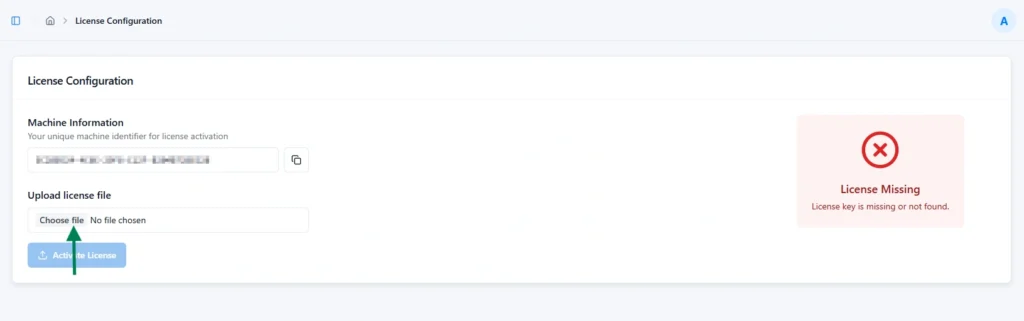
Kernaro AI requires a valid license to operate. Upon installation or deployment, if no valid license is found, Kernaro AI automatically redirects to the License Configuration page. Administrators can configure and activate the license using the provided license key.
Until a valid license is successfully configured and verified, access to Kernaro AI’s features and tools will remain restricted. This ensures that only authorized and properly licensed deployments of Kernaro AI are enabled for use.
Steps to configure the license
1. Upload the License File
After receiving the .key license file, navigate to the License Configuration page and click Choose File to upload it. Once selected, the file name will appear in the upload field, confirming that it’s ready for activation.
2. Activate the License
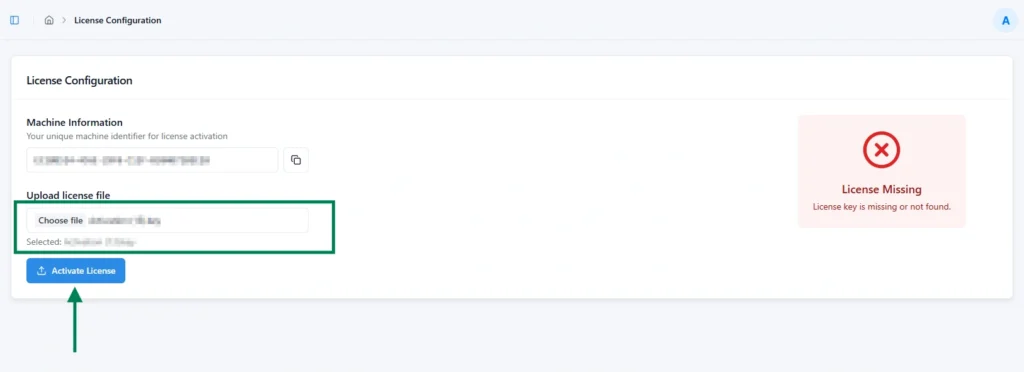
After selecting the license file, click Activate License to begin validation. Kernaro AI verifies the uploaded license file for authenticity and validity.
If the license is successfully validated, the system automatically updates to display the License Information screen, confirming that Kernaro AI is now activated and ready for use.
3. License Active Screen (Successful Activation)
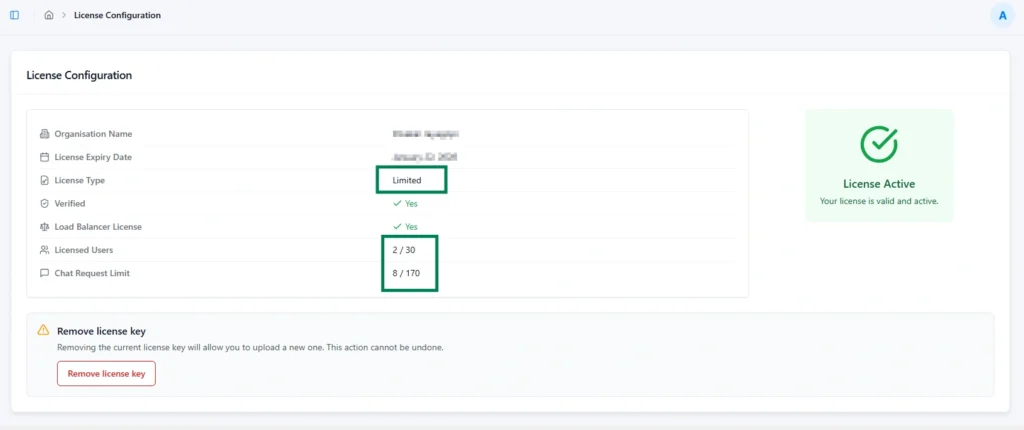
Once the license is successfully activated, the License Information page displays key details about the configured license, including:
- Organization Name
- Expiry Date
- License Type
- Licensed Users (if applicable)
- Chat Request Limits
A green status indicator confirms that the license is active and valid.
Kernaro AI supports two types of licenses:
- Limited License
- Unlimited License
Limited License
- Licensed Users: Displays the number of users currently licensed out of the total available (e.g., 2/5).
- Chat Request Limit: Displays the number of chat requests used and the total allowed (e.g., 22/100).
- License Type: Displays as “Limited.”
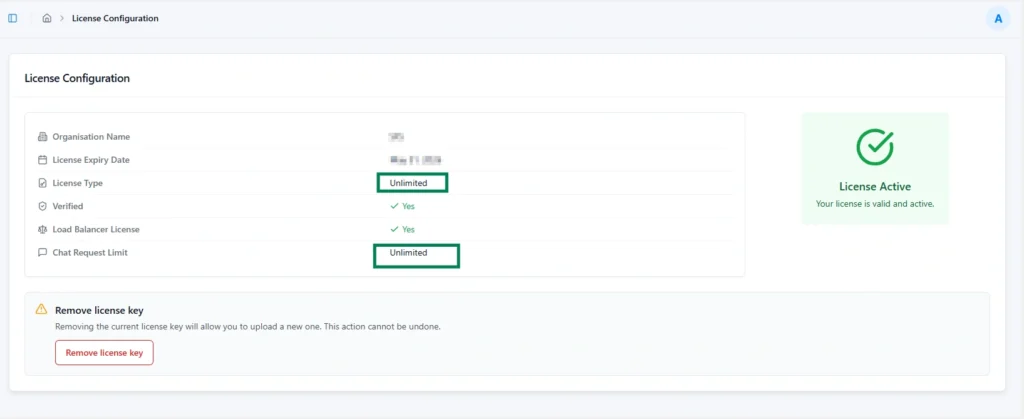
Unlimited License
- Chat Request Limit: Displays as “Unlimited.”
- License Type: Displays as “Unlimited.”
- Licensed Users: This section is hidden for unlimited licenses.
Expired License
When the license expires, Kernaro AI automatically redirects users to the License Configuration page. Administrators must request a new valid license from sales@ai.6thforce.com to update the license status to Active.
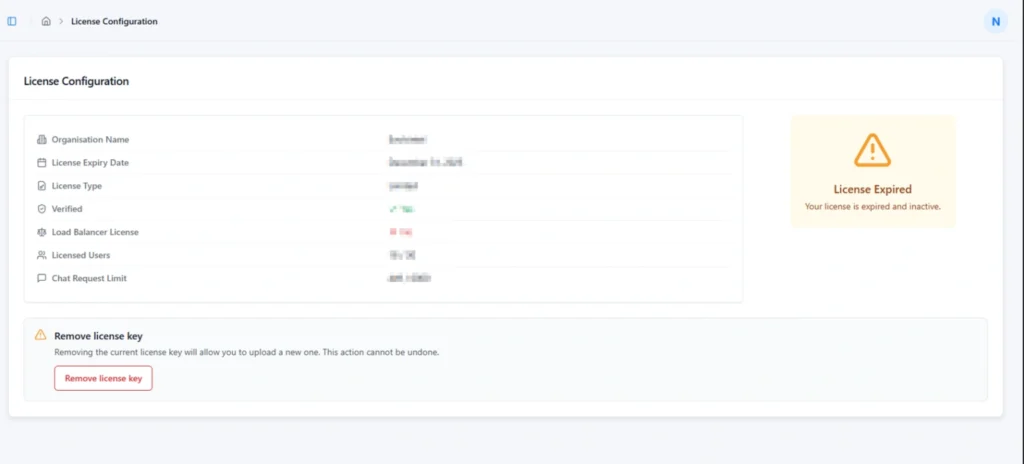
Once the new license is received, it can be updated by removing the existing license using the Remove License Key button and uploading the latest license file.
Subscribe to our Newsletter
Get product updates, feature tips, and integration insights in your inbox.