


How to Configure the Embedding LLM in Kernaro
Introduction
The Embedding LLM in Kernaro AI is a mandatory configuration that enables Kernaro AI to understand and process the semantic meaning of your documents. It works by transforming uploaded documents into vector representations, allowing Kernaro AI to perform accurate context-based searches and retrieve the most relevant information during a chat or query.
This setup is essential for enabling document intelligence within Kernaro AI, helping it interpret relationships, topics, and meanings beyond just keywords.
Once configured, the Embedding LLM supports Kernaro AI’s Document Explorer and other agents that rely on vectorized data to deliver precise and context-aware answers.
The following section explains the steps to configure the Embedding LLM.
Supported LLM Providers
Kernaro AI currently supports the following Embedding LLM providers:
Steps to Access Embedding LLM Configuration
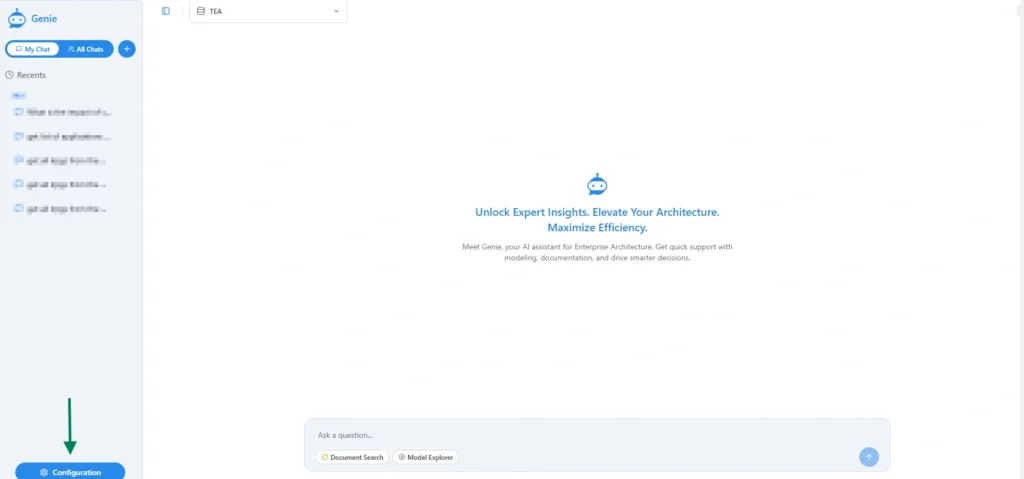
- Navigate to Configuration
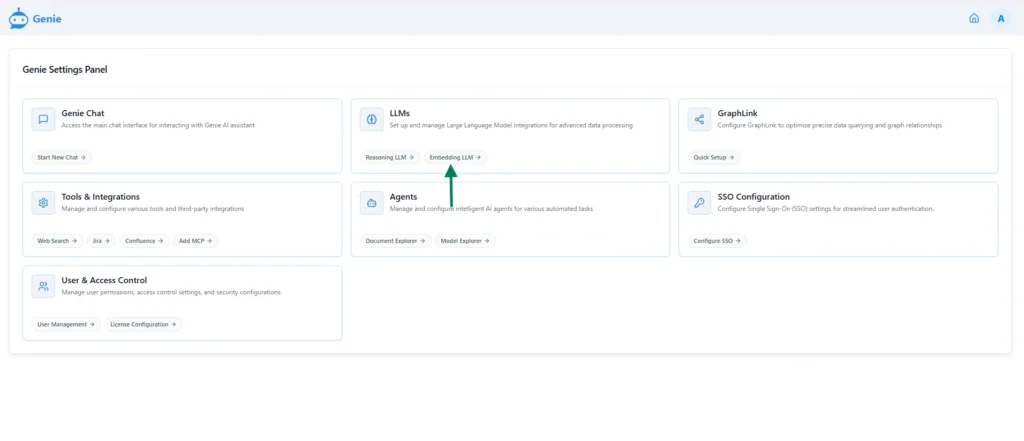
- And choose LLMs → Embedding LLM
- Locate the Select your LLM provider dropdown
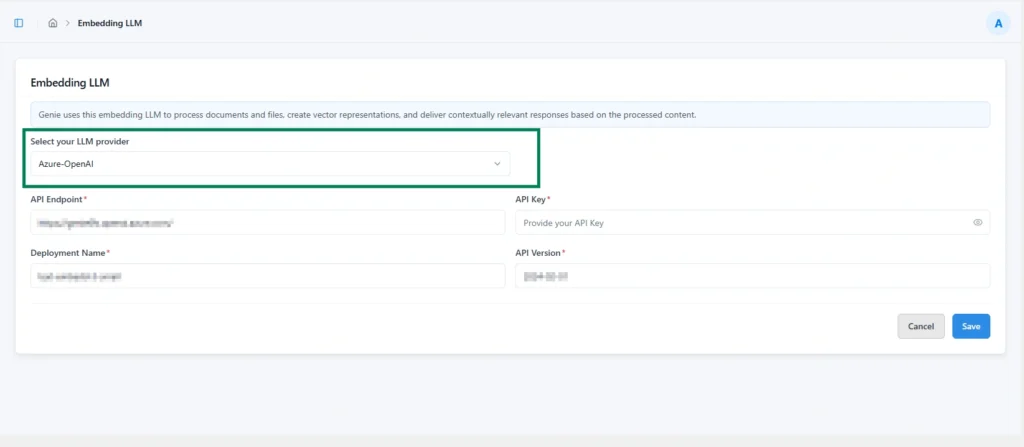
- The default provider is Azure – Open AI.
- Selecting a different provider automatically updates the page to show the relevant configuration fields required for that provider.
Configuring Embedding LLM Providers
To configure the Embedding LLM , the following fields are mandatory:
Azure – Open AI
Required Fields
| Name | Description |
|---|---|
| API Endpoint* | The endpoint URL where requests are sent to your Azure OpenAI service. |
| API Key* | The authentication key used to securely connect with your Azure OpenAI resource. |
| Deployment Name* | The name of the deployed Azure OpenAI model configured in your Azure portal. |
| API Version* | The version of the Azure OpenAI API to be used for communication. |
Steps
- Enter all required details for the selected LLM provider.
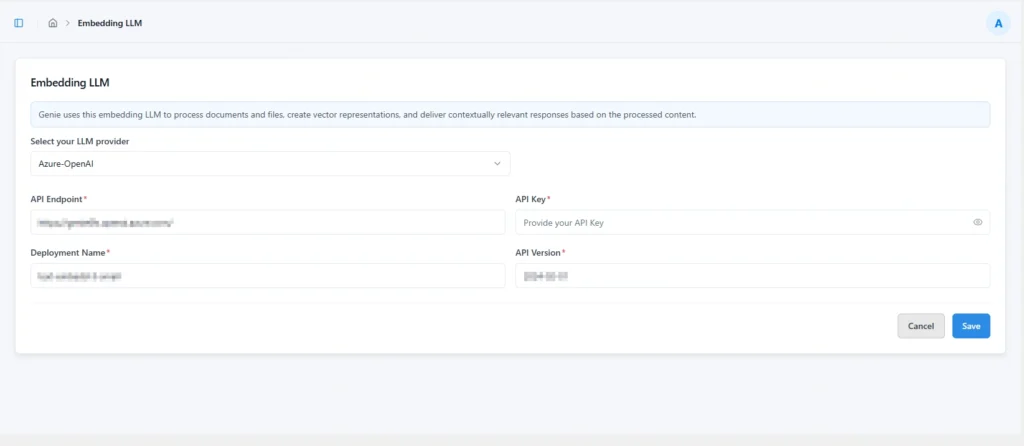
- Click “Save” to validate and store the configuration securely.
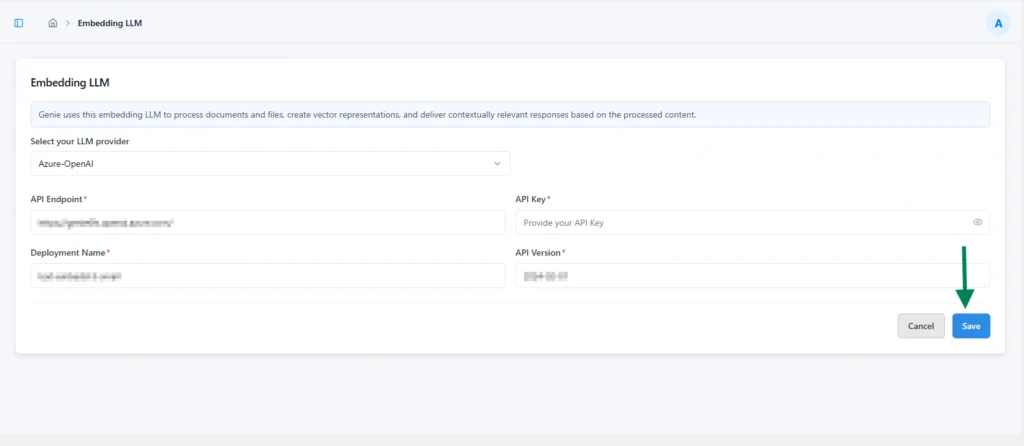
Note: For security purposes, the API Key will be hidden after validation and saving, ensuring it is not visible or accessible from the interface.
AWS Bedrock
Required Fields
| Name | Description |
|---|---|
| Model Id* | The identifier of the Claude model deployed in AWS Bedrock to be used for reasoning. |
| Region Name* | The AWS region where the Bedrock model is hosted and accessed. |
Steps
- Enter all required details for the selected LLM provider.
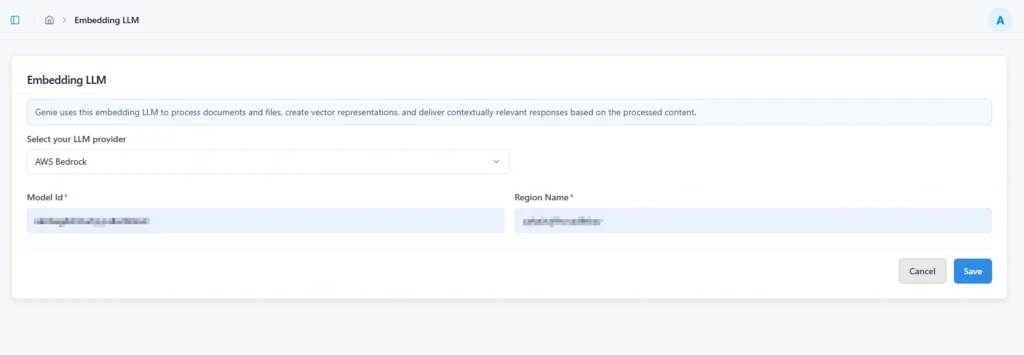
- Click “Save” to validate and store the configuration securely.
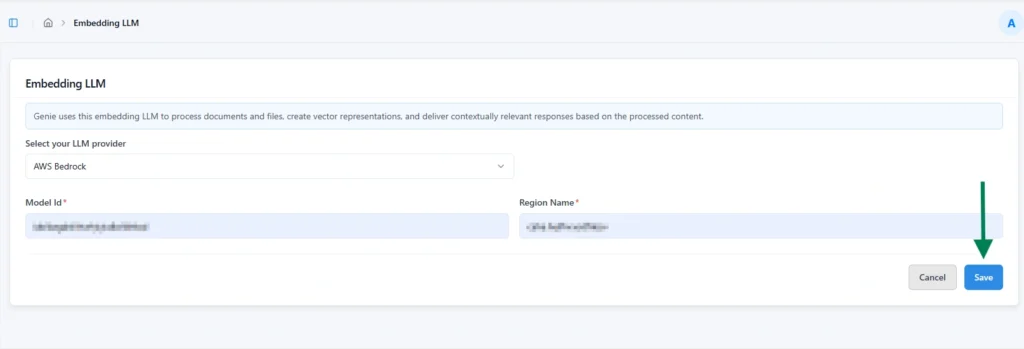
Note: For security purposes, the API Key will be hidden after validation and saving, ensuring it is not visible or accessible from the interface.
Open AI
Required Fields
| Name | Description |
|---|---|
| Model Id* | The identifier of the OpenAI model to be used for reasoning and responses. |
| API Key* | The authentication key used to securely connect with the OpenAI API. |
Steps
- Enter all required details for the selected LLM provide
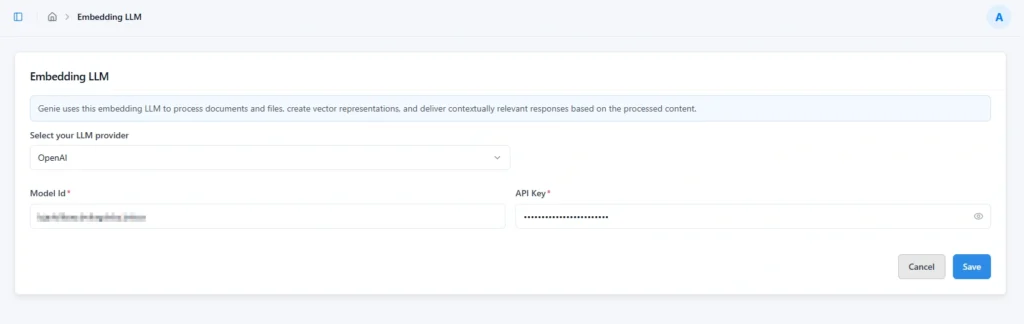
- Click “Save” to validate and store the configuration securely.
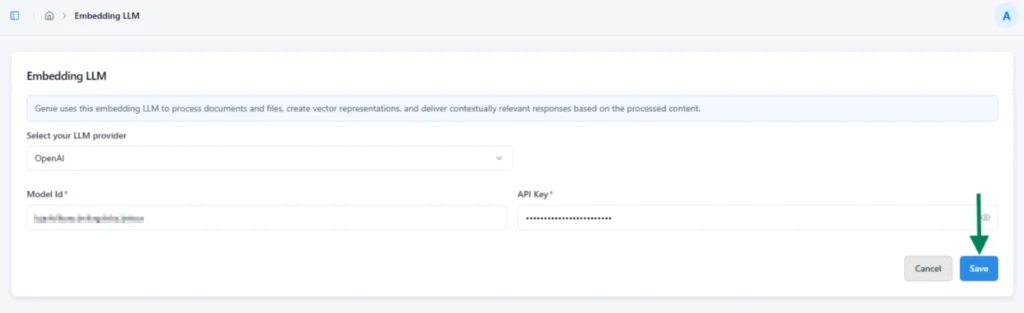
Note: For security purposes, the API Key will be hidden after validation and saving, ensuring it is not visible or accessible from the interface.
Subscribe to our Newsletter
Get product updates, feature tips, and integration insights in your inbox.