


License Management User Guide
Overview
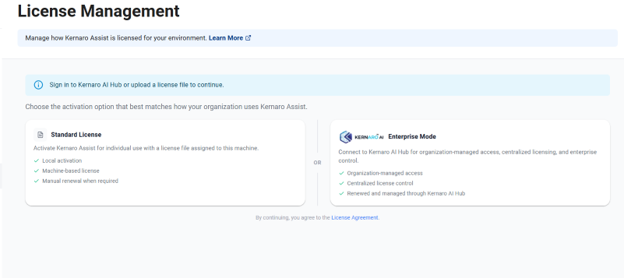
The License Management page allows users to activate Kernaro Assist using one of the following licensing methods:
Kernaro Assist supports the following activation modes:
- Standard License – Local machine-based activation using a license file.
- Enterprise Mode – Organization-managed activation through Kernaro AI Hub using Single Sign-On (SSO).
Standard License
- Standard License is designed for standalone or individually managed installations.
- This mode uses machine-based licensing. A license file is generated for a specific device using the Machine ID displayed in Kernaro Assist. Once the license file is uploaded, Kernaro Assist is activated locally on that machine.
- No user login is required for Standard License activation.
Activation Process
Step 1: Retrieve Machine ID
- Open the License Management page.
- Select Standard License.
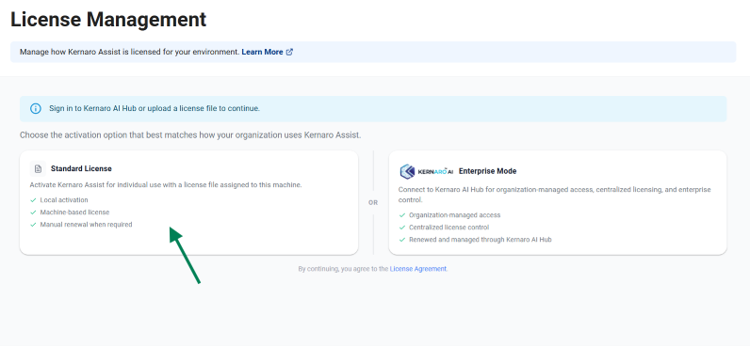
- Copy the displayed Machine ID.
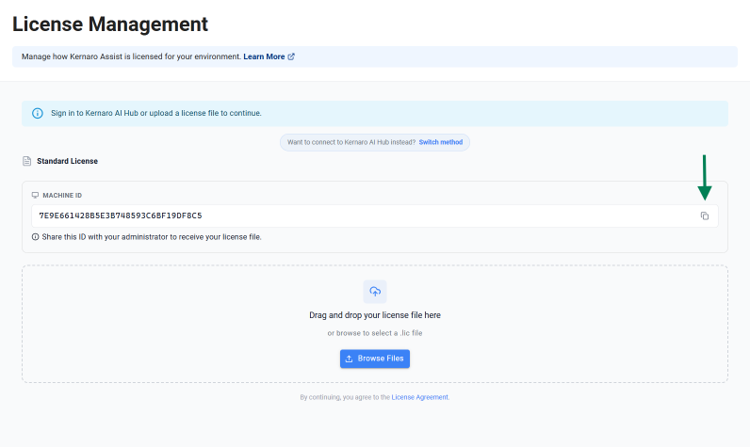
Step 2: Request License File
Send the copied Machine ID to the Kernaro Support team @ kernaro@sparxsytems.com.
A license file will be generated specifically for that machine and shared.
Step 3: Upload License File
- Drag and drop the provided .lic file into the upload area.
OR
- Click Browse Files and select the license file.
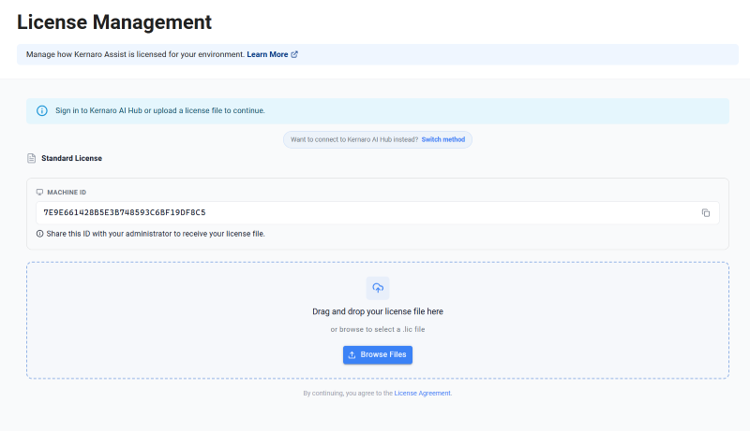
Step 4: Activation
After a valid license file is uploaded:
- The license is validated automatically.
- The license is activated locally on the machine.
- No user login is required.
License Renewal
When a Standard License expires, a new license file must be requested.
To renew the license:
- Contact the administrator or Kernaro Support team.
- Provide the Machine ID if required.
- Receive the renewed license file.
- Remove the existing expired license.
- Upload the newly issued license file through the License Management page.
Once the new license file is uploaded successfully, Kernaro Assist will be reactivated.
Enterprise Mode
- Enterprise Mode is designed for organizations that manage user access and licensing centrally through Kernaro AI Hub.
- This mode provides secure Single Sign-On authentication, centralized license assignment, and organization-level administration. It allows organizations to manage user access, licensing, and renewals from a single platform.
Activation Process
Step 1: Connect to Kernaro AI Hub
- Open the License Management page in Kernaro Assist.
- Select Enterprise Mode.

3.Enter your organization’s Kernaro AI Hub URL.
Example:
Step 2: Validate Connection
Click Validate Connection.
When this option is selected, Kernaro Assist verifies that:
- The provided Kernaro AI Hub URL is reachable.
- Kernaro Assist can communicate successfully with the server.
- The organization’s configuration is valid before authentication continues.
Once the connection is validated successfully, the Sign in with Kernaro AI Hub button becomes available.
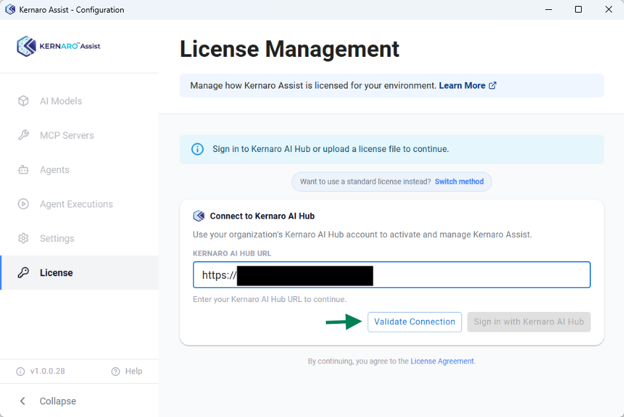
When this option is selected, Kernaro Assist verifies that:
- The provided Kernaro AI Hub URL is reachable.
- Kernaro Assist can communicate successfully with the server.
- The organization’s configuration is valid before authentication continues.
Once the connection is validated successfully, the Sign in with Kernaro AI Hub button becomes available.
Step 3: Sign In with Kernaro AI Hub
- Click Sign in with Kernaro AI Hub.
- This opens a browser window and prompts the user to sign in using their Kernaro AI Hub credentials.
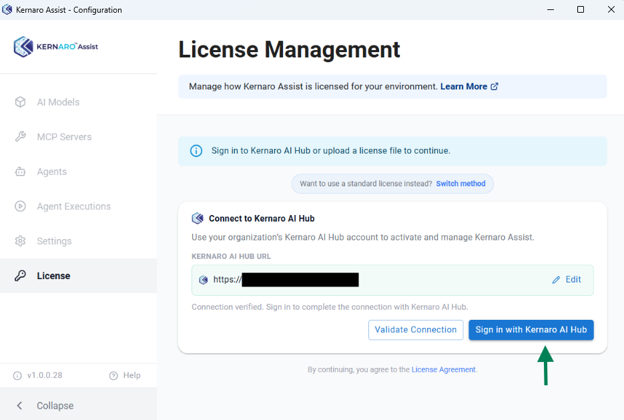
Step 4: Complete Activation
After successful authentication:
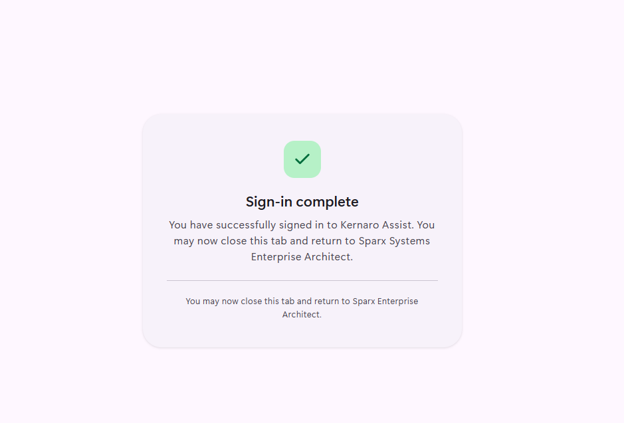
- A success message is displayed in the browser.
- The browser window can be closed.
- Return to Kernaro Assist.
- Kernaro Assist automatically signs in the authenticated user and activates the application.
License Renewal
- License renewals in Enterprise Mode are managed centrally through Kernaro AI Hub.
- When a license is renewed or extended by the organization’s administrator, the updated entitlement is automatically applied to authorized users.
- No manual license file upload or local renewal action is required within Kernaro Assist.
Important Note
- EA Security user accounts and roles are separate from Kernaro Assist user management.
- Access permissions within Kernaro Assist are controlled independently and determine each user’s read and write privileges based on their assigned role.
Licensing Comparison
| Feature | Standard License | Enterprise Mode |
|---|---|---|
| Activation Method | License File (.lic) | SSO authentication through Kernaro AI Hub |
| License Management | Local machine-based management | Centralized management through Kernaro AI Hub |
| User Authentication | Not Required | Required |
| License Assignment | Machine-Based | User/Organization-Based |
| Renewal Management | Manual license file renewal | Centrally managed and automatically applied |
| Best Suited For | Individual or standalone installations | Enterprise Deployments |