

Configuring a Graph Schema for Models Using Multiple MDGs
Overview
When an Enterprise Architect model uses multiple MDGs, it is often necessary to query stereotypes that span across these MDGs. However, within GraphLink Query Explorer, only a single Graph Schema can be active at any given time.
To enable seamless querying across multiple MDGs, GraphLink provides the Link Stereotypes capability. This feature allows stereotypes from additional MDGs to be linked into a primary or default schema, enabling cross-MDG queries through a unified schema.
This guide explains how to correctly configure Graph Schemas when working with multiple MDGs.
Step-by-Step Configuration
1. Upload All MDGs Used in the EA Model
- Navigate to Manage Graph Schemas.
- Upload each MDG that is used within your EA model.
Uploading all relevant MDGs ensures that their stereotypes are available for selection and linking.

2. Select a Default Schema
- Identify one schema to act as the default schema.
- It is recommended to select the MDG that is most frequently used or represents the core structure of your EA model.

3. Edit the Default Schema
- From the Actions menu, select Edit for the chosen default schema.
- The system will display all stereotypes currently included in that schema.

Link Stereotypes from Other MDGs
To include stereotypes from additional MDGs, follow the steps below.
- Click on Link Stereotypes

a. Choose Schema
- In the dialog, use the Choose Schema dropdown to select another uploaded MDG.

- All uploaded MDGs will be listed. Select the MDG that contains the stereotype you want to link to.
b. Choose Stereotype
- After selecting the schema, open the Choose Stereotype dropdown.
- Select the required stereotype from the list of available stereotypes in the chosen MDG.

c. Review Tagged Values & Connectors
Once a stereotype is selected:
- Its tagged values
- Its relationships and connectors
will be automatically displayed for review.

d. Link the Stereotype
- Click Link to add the selected stereotype to the default schema.
- The linked stereotype will appear in the schema, clearly identified with its originating MDG.

e. Update the Schema
- Repeat the above steps for all required stereotypes.
- Click Update Schema to save the configuration.

Updating an Existing Schema
If you need to modify details such as the business name or description of a linked stereotype, updates must be made in the base MDG schema, not directly in the default schema.
How to Update an Existing Schema
- Go to Manage Graph Schemas.
- Locate the MDG that contains the stereotype requiring changes.
- Click Edit for that MDG.

4.Make the required updates, such as modifying the business name or description.

5.Click Update Schema to save the changes.
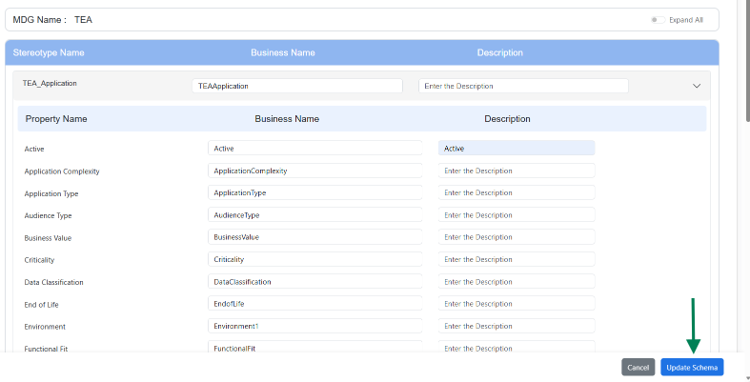
Once updated, all linked schemas will automatically reflect these changes, ensuring consistency across the EA model.
Result
After completing this configuration:
- You can query stereotypes from multiple MDGs using a single schema in Query Explorer.
- Cross-MDG relationships and metadata become accessible in a unified manner.
- Queries deliver more comprehensive and meaningful insights across the entire EA model.

This approach ensures scalable, consistent, and maintainable GraphLink queries in environments with complex MDG usage.
Subscribe to our Newsletter
Get product updates, feature tips, and integration insights in your inbox.